BlogMicrosoft 365
How do I use Microsoft 365 to Manage My Devices Anywhere? Level 2 of the M365 Maturity Model
Video · 2:41
The 3-minute version
This is Level 2 of my Microsoft 365 Maturity Model. When I survey attendees in my webinars, about half say they're already there, and the other half say it's still a work in progress.
We've known for a while that once identity moved to the cloud, it was sitting outside the firewall, and remote work put the devices out there with it. The trouble is that group policy, imaging, and patching all expect a device to be on the office network, so the further a laptop gets from the office, the harder it is to keep it updated and on policy. And checking every device before it gets access can look like it would lock out a lot of them the day you turn it on.
I think of this level as one device lifecycle: every device is set up, kept current, checked, and eventually replaced the same way. But I also think the win for the business is across the board. End Users get less headaches and more consistency while IT has MUCH less friction in managing devices.
Microsoft 365 E3 combines Office 365 E3, Enterprise Mobility + Security E3, and Windows Enterprise E3 (Microsoft licensing guidance, as of November 2026). Cloud Connected put the Office 365 part to work, and Managed Everywhere puts the other two to work, so if you own E3, you already have the tools for everything in this post. It's also a level where I get to be really prescriptive, because most organizations I work with build it in the same order and extract benefits along the way.
Tenant cleanup
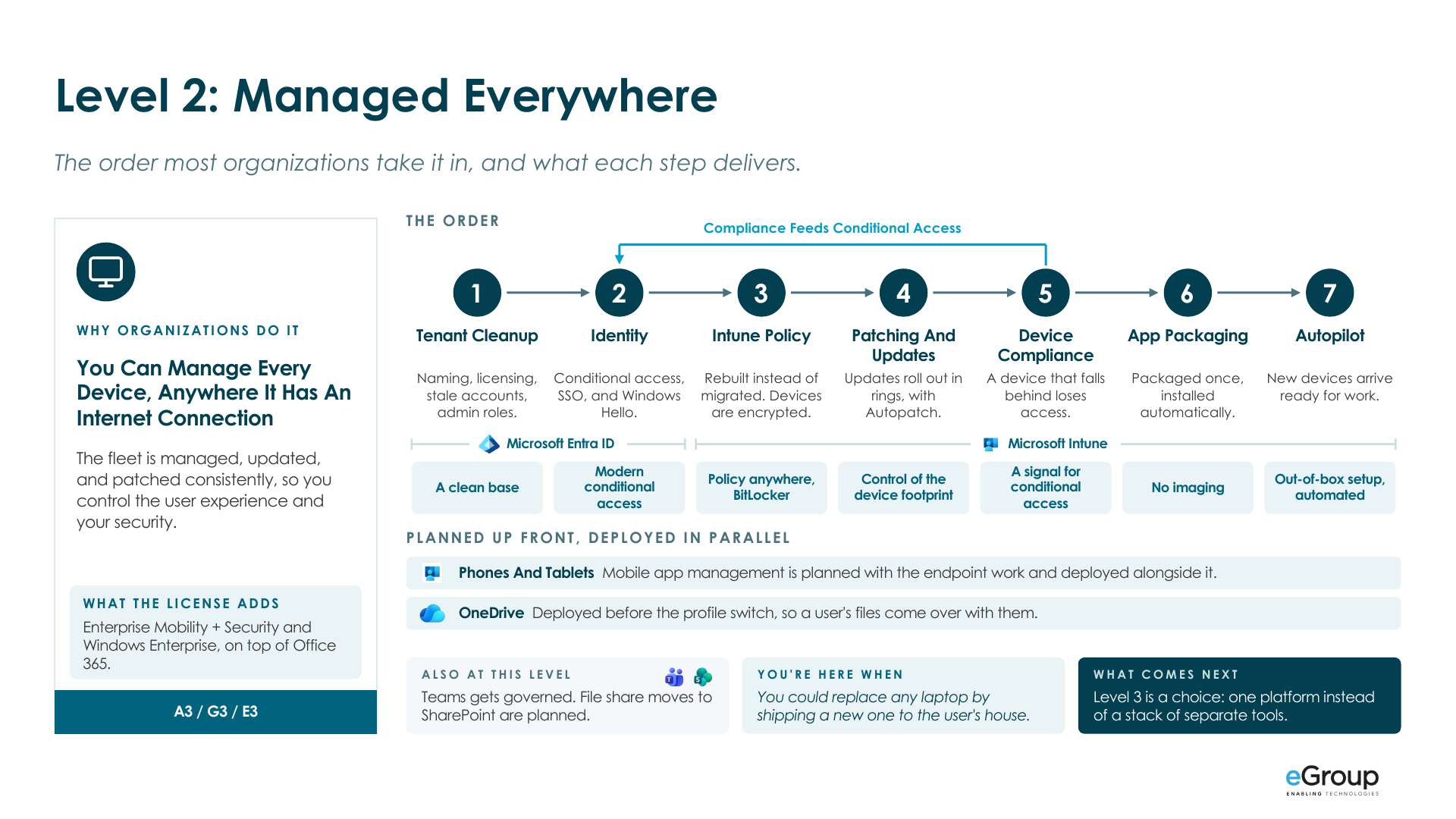
Tenant cleanup comes first, because everything after it builds on that base. There's always a phase zero in the roadmaps we build, and it's standardizing the tenant: naming, license assignments, stale accounts and devices, and admin roles. One I check every time is admin separation. Admin accounts in Entra ID should be cloud-only accounts, separate from your domain admin accounts and not synchronized from Active Directory, so a compromise on one side doesn't hand over the other. With a clean base, the conditional access and Intune policies that come next apply to the right people and devices.
Identity
Identity comes next, because everything else centers on the user's identity. Conditional access is part of Microsoft Entra ID P1, which comes with E3 (Microsoft Learn, as of November 2026), and its policies decide what a sign-in needs based on who the user is, what device they're on, and where they're signing in from. That gives you one place to decide who gets in and from what, whether they're in the office or not.
Single sign-on (SSO) comes with it, and it's the part users notice as a win. When your SaaS apps sign in through Entra ID, the same conditional access policies and MFA apply to them, and when someone leaves, disabling one account cuts off every app at once. In my experience, this is where most organizations take their biggest step forward on identity.
Windows Hello for Business replaces the password at the device with a PIN, face, or fingerprint tied to that machine. A hundred percent Windows Hello is the goal, and it's usually a three to five year turn, because most organizations get there as they refresh devices. The keys are kept in the device's TPM chip when it has one, and face and fingerprint sign-in need a compatible camera or fingerprint reader (Microsoft Learn).
Intune policy
Policy gets rebuilt in Intune instead of migrated from group policy, and that's one of my stronger opinions. The idea is to evaluate what group policy delivers today and recreate the baselines you need with the target in mind. Migrated group policy brings over settings that were never designed to work together. When a user's first sign-in turns into a string of reboots, one for each policy that needs a restart to apply, that's usually what we find behind it. Rebuilding takes a little longer up front, and it's always a lot cleaner in the end, because you're not moving the mess. Servers can stay on group policy, since they have line of sight to a domain controller. It's the laptops that drift.
Intune policy reaches the laptop over the internet, wherever it is. Encryption is part of this step too. Intune enforces BitLocker and the recovery keys are stored in Entra ID, so a lost laptop isn't a lost set of files.
Patching and updates
Updates roll out in rings, and Windows Autopatch sets up and runs those rings for you. You decide who's in each ring and how quickly updates move, with a test group first and everyone else after. Autopatch covers Windows quality and feature updates, drivers and firmware, Microsoft 365 Apps, Microsoft Edge, and Microsoft Teams (Microsoft Learn), and it's included with E3 (prerequisites, as of November 2026). The laptop stays patched without ever coming back to the office.
Third-party apps are the gap. For those we pair Intune with Patch My PC. It's what our own managed services team uses, it's not expensive, and I don't know anybody who's had a bad experience with it. Microsoft's own option, Enterprise App Management, keeps catalog apps updated and is included with Microsoft 365 E5 or sold as an add-on, as of November 2026 (Microsoft Learn).
Device compliance
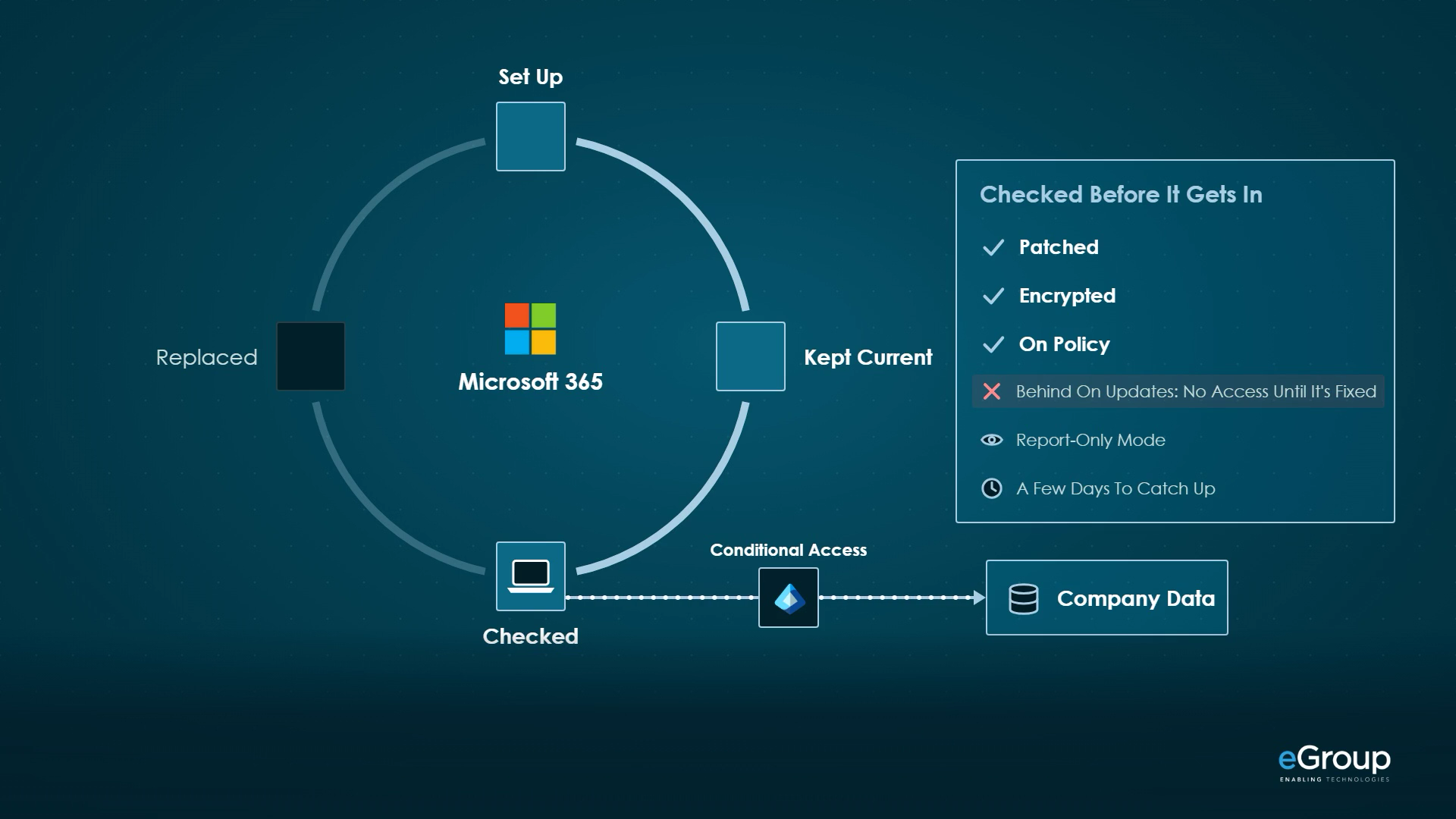
With device compliance, conditional access checks the device as well as the user, and it's my answer to enforcing patches. Your update baseline and encryption requirements go into an Intune compliance policy, and a conditional access policy that requires a compliant device only gives full access to one that passes (Microsoft Learn). If a device falls below the waterline, it can't reach company data until it's updated, so users remediate on their own instead of IT chasing them, and the only devices with full access are the ones you manage. Devices that aren't managed can still reach email and files in the browser, with downloads blocked (Microsoft Learn).
Because policy and patching came first, most devices already pass when you turn this on. We usually run the policy in report-only mode first, which logs what it would block without enforcing it (Microsoft Learn), and tune it before enforcing. Intune can also give a failing device a few days to catch up before it's marked noncompliant (the setting runs from zero to 365 days), and the user keeps access in that window (Microsoft Learn).
Phones and tablets are covered too. Company-owned ones are enrolled in Intune, and personal phones usually get app protection policies instead, which keep company data inside Outlook, Teams, OneDrive, and the other Microsoft 365 apps. If someone leaves or loses their phone, IT wipes the work apps and the data in them, and their personal photos and texts stay out of IT's reach. App protection works without enrolling the phone, and it's part of Intune Plan 1, which comes with E3 (Microsoft Learn, as of November 2026).
App packaging
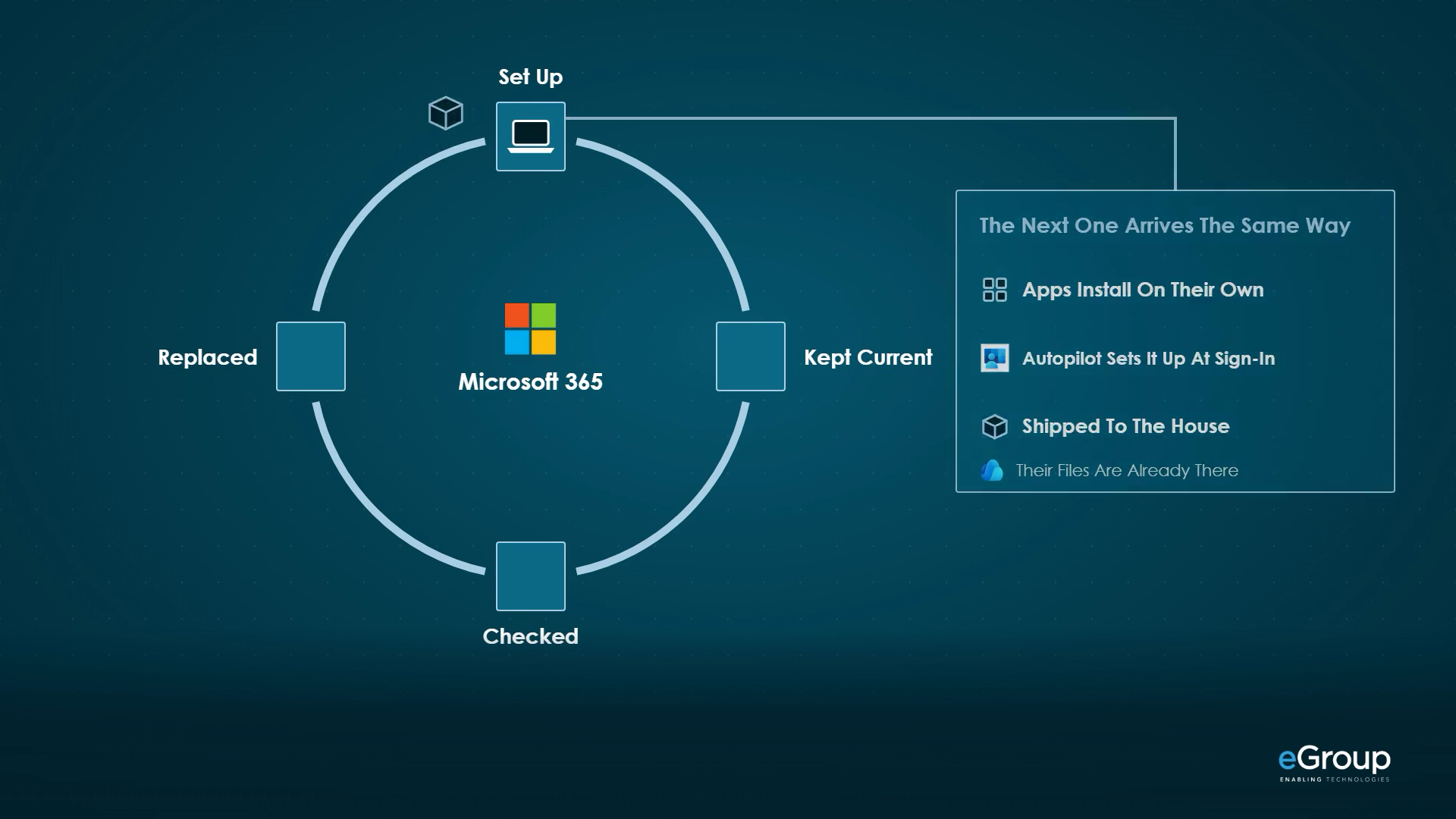
App packaging is usually the last and longest of the Intune steps, because packaging applications is a messy business. Each app gets packaged once, assigned to the users or roles that need it, and installed automatically when a device is set up. Once that's done, nobody is imaging machines anymore, and a laptop shows up with the apps the user's role needs.
Autopilot
Autopilot is the out-of-box experience: the user opens the box, signs in, and the laptop sets itself up, at home or anywhere else. Instead of anyone re-imaging it, Autopilot takes the Windows installation that shipped on the device to a known good, business-ready state, including the move to Windows Enterprise (Microsoft Learn). The device joins Entra ID and enrolls in Intune, encryption turns on, policy applies, Microsoft Defender Antivirus is already running because it's part of Windows, compliance is checked, and the apps install, all unattended. The hardware vendor or reseller can register new devices to your tenant when you buy them, so a laptop can ship straight to the user. A new hire, or someone whose laptop just failed, is working as soon as the box arrives.
Existing devices
Most organizations move existing devices at refresh. New and replaced devices arrive through Autopilot already joined to Entra ID, but an existing device joined to the on-premises domain has to be reset to become Entra joined (Microsoft Learn). For the user, that means signing in with their work email address instead of a domain username, on a new profile. That's a little disruptive, which is why it's paired with a new device. I'd start with a small pilot of people who cover your use cases. After that, converting the people who won't get a new device for years becomes a background activity.
OneDrive goes in before that move, so the user's files are waiting when they sign in. Known Folder Move redirects each user's Desktop, Documents, Pictures, Screenshots, and Camera Roll folders into OneDrive, and it can be pushed silently through Intune (Microsoft Learn). Home drives move into OneDrive at the same time, and moving departmental file shares into SharePoint document libraries gets planned here too.
My take
Shipping a new laptop straight to the user is only part of what this level gives you. I think the more important part is that you can manage and validate every device wherever it lives, so a laptop at someone's house is held to the same standard as one on a desk in the office. It also takes imaging and chasing patches off IT's list. I treat that as the supporting point, because saving time rarely persuades a leader who already has people doing the work. As a lifelong virtual desktop practitioner, I am also a big believer that a consistent deployment from device to device vastly reduces support desk tickets. Happier users, less effort, stuff works as intended.
Working through the same problems?
Jason compares notes with IT leaders every week. Reach out on LinkedIn.